Postingan

Digital Signature: A Crucial Digital Security Technology
Gambar
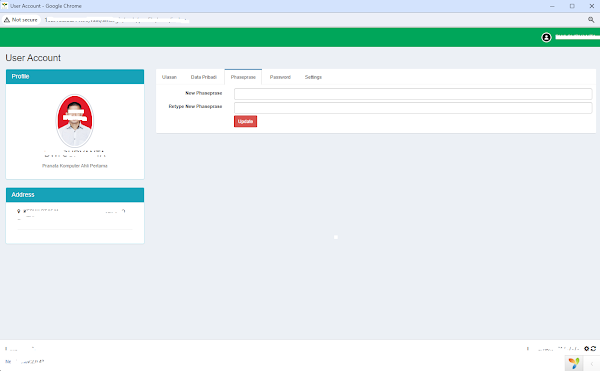
In today's digital era, trust and security in electronic transactions have become increasingly important. One of the most crucial tools in ensuring the integrity and authenticity of digital information is the digital signature. This article will discuss what a digital signature is, how it works, its benefits, and some of the challenges it faces. What is a Digital Signature? A digital signature is a cryptographic mechanism that allows an individual to sign electronic documents securely. Similar to a handwritten signature on paper documents, a digital signature is used to verify the identity of the signer and ensure that the document has not been altered since it was signed. How Does a Digital Signature Work? Digital signatures operate through a cryptographic process involving two keys: a private key and a public key. 1. Creating Phaseprase: Phasephrase, or sometimes spelled as "phase phrase," is a specific term related to cryptographic security, particularly in the ...

Node.js Image to Text (KTP INDONESIA)

To run this code, you need to ensure you have installed the necessary dependencies, particularly Tesseract.js. You can install Tesseract.js using npm: npm install tesseract.js Copy Paste This Code: const Tesseract = require('tesseract.js'); async function recognizeKTP(imagePath) { try { // Run OCR on the provided image const { data: { text } } = await Tesseract.recognize( imagePath, 'ind', // Set the language to Indonesian { logger: m => console.log(m) } // Optional logger function to see progress ); // Extract relevant fields from the recognized text const ktpData = { NIK: '', Nama: '', TglLahir: '', TempatLahir: '', JenisKelamin: '', Alamat: '', GolDarah: '', Agama: '', StatusPerkawinan: '', ...

Node.js Telegram Bot API send an image with text

To send an image with text using the Telegram Bot API in Node.js, you can use the node-fetch library to make HTTP requests and the FormData module to handle multipart/form-data requests for uploading images. First, install the required modules: npm install node-fetch Here's an example code snippet to send an image with text using the Telegram Bot API: const fetch = require('node-fetch'); const FormData = require('form-data'); const BOT_TOKEN = 'YOUR_TELEGRAM_BOT_TOKEN'; const CHAT_ID = 'TARGET_CHAT_ID'; async function sendImageWithText() { const photoUrl = 'URL_TO_YOUR_IMAGE'; // Replace with the URL of your image const form = new FormData(); form.append('chat_id', CHAT_ID); form.append('photo', photoUrl); form.append('caption', 'Your text caption goes here'); try { const response = await fetch(`https://api.telegram.org/bot${BOT_TOKEN}/sendPhoto`, { method: 'POST', ...

Node.js schedule

To use node-schedule to execute a task every day at a specific time, you can create a schedule rule using the library's syntax. Here's an example that schedules a task to run every day at 2:30 PM: First, install node-schedule if you haven't already: npm install node-schedule Now, you can use the following code: const schedule = require('node-schedule'); // Schedule a task to run every day at 2:30 PM const dailyJob = schedule.scheduleJob('30 14 * * *', () => { // Your code here console.log('Task executed every day at 2:30 PM'); }); In the above code: '30 14 * * *' is a cron-like syntax specifying the schedule. It means the task will run when the minute is 30 and the hour is 14 (2 PM). The * in the other positions means "any" for the day of the month, month, day of the week, and year. Adjust the cron expression based on your preferred time. The first part represents the minute (0-59), the second part represent...

Node.js API from PHP

To call a Node.js API from PHP, you can use various methods such as cURL or Guzzle. Here's an example of how you can call a Node.js API from PHP using cURL: // URL of the Node.js API endpoint $url = 'http://localhost:3000/api'; // Replace this with your Node.js API URL // Data to be sent to the Node.js API $data = array( 'key1' => 'value1', 'key2' => 'value2' ); // Initialize cURL session $ch = curl_init($url); // Set the request method to POST curl_setopt($ch, CURLOPT_POST, 1); // Set the POST data curl_setopt($ch, CURLOPT_POSTFIELDS, $data); // Set the return transfer to true curl_setopt($ch, CURLOPT_RETURNTRANSFER, true); // Execute the request $response = curl_exec($ch); // Close the cURL session curl_close($ch); // Output the response echo $response; Make sure to replace the URL with the actual endpoint of your Node.js API and modify the $data array as per your API's requirements. Additionally, you can u...

Node.js select a MySQL database

To select a MySQL database and insert data into a table within that database using Node.js, you need to modify the previous code by specifying the database in the connection and using the selected database in the SQL query. Here's an example: const mysql = require('mysql'); // Create a connection to the database const connection = mysql.createConnection({ host: 'localhost', // Replace with your host name user: 'yourusername', // Replace with your database username password: 'yourpassword', // Replace with your database password database: 'yourdatabase', // Replace with your database name }); // Connect to the database connection.connect((err) => { if (err) { console.error('Error connecting to the database: ' + err.stack); return; } console.log('Connected to the database as id ' + connection.threadId); // Select the database connection.query('USE yourdatabase', (error) => { if ...

Node.js web service using Express

To create a Node.js web service using Express that handles POST requests with parameters, you can follow these steps: 1. Initialize a new Node.js project: mkdir myWebService cd myWebService npm init -y 2. Install Express and Body-Parser: npm install express body-parser 3. Create an index.js file with the following code: // index.js const express = require('express'); const bodyParser = require('body-parser'); const app = express(); const port = 3000; // Use body-parser middleware app.use(bodyParser.urlencoded({ extended: false })); app.use(bodyParser.json()); // Handling POST request with parameters app.post('/api', (req, res) => { const { param1, param2 } = req.body; res.send(`Received POST data - Parameter 1: ${param1}, Parameter 2: ${param2}`); }); // Start the server app.listen(port, () => { console.log(`Server is running at http://localhost:${port}`); }); 4. Run the service using the following command: node index.js...

OTP (One Time Password) functionality in PHP with an expiration time

To implement OTP (One Time Password) functionality in PHP with an expiration time, you can use the $_SESSION variable to store the OTP and its creation time. Here's an example of how to generate an OTP with an expiration time: // Function to generate a random OTP function generateOTP($length = 6) { $characters = '0123456789'; $otp = ''; $max = strlen($characters) - 1; for ($i = 0; $i In this example, the generateOTP function generates a 6-digit random OTP. The isOTPValid function checks whether the provided OTP matches the stored OTP and whether the expiration time has passed. Adjust the expirationTime variable as needed, and make sure to handle the expiration logic according to your application's requirements.

Node.js Telegram BOT retrieve data from API

To retrieve data from an API and send it via a Telegram bot using Node.js, you can combine the axios library for API requests with the node-telegram-bot-api library for sending messages. Below is an example that fetches data from an API and then sends it as a message using a Telegram bot: const TelegramBot = require('node-telegram-bot-api'); const axios = require('axios'); // Telegram Bot API token (replace this with your own token) const token = 'YOUR_TELEGRAM_BOT_API_TOKEN'; const bot = new TelegramBot(token, { polling: true }); // API endpoint to fetch data from const apiUrl = 'YOUR_API_ENDPOINT'; // Replace with your API endpoint // Client ID and Client Secret for authentication const clientId = 'YOUR_CLIENT_ID'; const clientSecret = 'YOUR_CLIENT_SECRET'; // Function to fetch data from the API const fetchDataFromAPI = async () => { try { const response = await axios.get(apiUrl, { headers: { 'Client-...

Node.js Telegram BOT

To send a message to a user or a group chat using the Telegram Bot API in Node.js, you can use the node-telegram-bot-api library. Below is an example of how to send a message to a specific chat using the library: const TelegramBot = require('node-telegram-bot-api'); // Telegram Bot API token (replace this with your own token) const token = 'YOUR_TELEGRAM_BOT_API_TOKEN'; // ID of the chat you want to send a message to const chatId = 'CHAT_ID'; // Replace with the actual chat ID // Create a bot that uses 'polling' to fetch new updates const bot = new TelegramBot(token, { polling: true }); // Function to send a message const sendMessage = (chatId, message) => { bot.sendMessage(chatId, message) .then(() => { console.log('Message sent successfully'); }) .catch((error) => { console.error('Error sending message:', error.message); }); }; // Example of sending a message sendMessage(chatId, 'Hello...

Integrate TCPDF into a Yii2 Advanced application

To integrate TCPDF into a Yii2 Advanced application, follow these steps: Step 1: Install TCPDF via Composer: In the root directory of your Yii2 Advanced application, run the following command: composer require tecnickcom/tcpdf Step 2: Create a new php file or use an existing one to generate PDFs. Here is an example of how to use TCPDF in a Yii2: $rootPath = Yii::getAlias('@vendor'); require_once $rootPath . '/autoload.php'; require_once $rootPath . '/tecnickcom/tcpdf/tcpdf.php'; $pdf = new TCPDF(); $pdf->SetCreator('Your Name'); $pdf->SetAuthor('Your Name'); $pdf->SetTitle('Sample PDF'); $pdf->SetSubject('Sample PDF'); $pdf->SetKeywords('TCPDF, PDF, Sample'); $pdf->AddPage(); $pdf->SetFont('times', 'B', 16); $pdf->Cell(40, 10, 'Hello World!'); header('Content-Type: application/pdf'); header('Content-Disposition: inline; filename="example.p...

How to download an image from a URL using file_get_contents in PHP, resize the image using the GD library, and then encode the resized image as BASE64.

Here's an example of how to download an image from a URL using file_get_contents in PHP, resize the image using the GD library, and then encode the resized image as BASE64.php // URL of the image you want to download and resize $imageUrl = 'https://example.com/path/to/your/image.jpg'; // Download the image using file_get_contents $imageData = file_get_contents($imageUrl); if ($imageData === false) { echo 'Failed to download the image.'; exit; } // Create an image resource from the downloaded image data $originalImage = imagecreatefromstring($imageData); if ($originalImage === false) { echo 'Failed to create image resource.'; exit; } // Get the original image dimensions $originalWidth = imagesx($originalImage); $originalHeight = imagesy($originalImage); // Calculate the new dimensions for the resized image $newWidth = 200; // Replace with the desired width for the resized image $newHeight = ($originalHeight / $originalWidth) * $newWi...

Create token using JSON Web Tokens (JWT)

To create a web token using JSON Web Tokens (JWT) in a web application, you can use libraries available in your programming language. Here, I'll demonstrate how to create a JWT in PHP using the "firebase/php-jwt" library. 1. Install the "firebase/php-jwt" library: Use Composer to install the PHP-JWT library. If you don't have Composer installed, you can download it from https://getcomposer.org/. Run the following command in your project's root directory to install the library: composer require firebase/php-jwt 2. Create a PHP script to generate a JWT: Create a new PHP file (e.g., generate_jwt.php) and add the following code: require __DIR__ . '/vendor/autoload.php'; // Include the composer autoloader use \Firebase\JWT\JWT; use \Firebase\JWT\Key; // Replace these values with your own secret key and any other claims you want to include in the token $secretKey = 'your_secret_key'; $issuedAt = time(); $expirationTime = $issued...

Add these security headers to your website

The X-Frame-Options, Strict-Transport-Security, X-Content-Type-Options, Referrer-Policy, Permissions-Policy, and Content-Security-Policy headers are security-related HTTP headers that help enhance the security of web applications. To add these security headers to your website, you can use the .htaccess file for Apache web servers or the server configuration for other web servers. Here's how to set each header: 1. X-Frame-Options: The X-Frame-Options header helps prevent clickjacking attacks by controlling whether your website can be embedded in an iframe on another domain. For Apache (using .htaccess): Header always set X-Frame-Options "SAMEORIGIN" 1. Strict-Transport-Security (HSTS): The Strict-Transport-Security header enforces the use of HTTPS by instructing the browser to only access the website over a secure (HTTPS) connection. For Apache (using .htaccess): Header always set Strict-Transport-Security "max-age=31536000; includeSubDomains" ...

WhatsApp Web login QR code in an HTML page using whatsapp-web.js

Gambar
To display the WhatsApp Web login QR code in an HTML page using whatsapp-web.js in Windows, you can follow these steps: 1. Install the required dependencies: npm install express qrcode whatsapp-web.js 2. Create a new file named api-browser.js and add the following code: const express = require('express'); const qrcode = require('qrcode'); const { Client } = require('whatsapp-web.js'); const app = express(); const port = 3000; app.get('/', (req, res) => { res.sendFile(__dirname + '/index.html'); }); app.get('/qrcode', async (req, res) => { const client = new Client(); client.on('qr', (qr) => { qrcode.toDataURL(qr, (err, url) => { if (err) { console.error('Error generating QR code:', err); res.sendStatus(500); } else { res.send(` `); } }); }); await client.initialize(); }); app.listen(port, () => { console.log(`Server is running on ht...

Run a Node.js script as a background process

To run a Node.js script as a background process, you can use various methods depending on your specific requirements and the operating system you are using. Here are a few options: 1. Using a process manager (e.g., PM2): - Install PM2 globally by running npm install -g pm2 . - Start your Node.js script as a background process using PM2: pm2 start your_script.js - PM2 provides additional features like process monitoring, automatic restarts, and log management. 2. Using the nohup command: - Open a terminal and navigate to the directory where your Node.js script is located. - Run the following command: nohup node your_script.js & The nohup command ensures that the script continues running even if the terminal session is closed. 3. Using the screen command: - Install screen if it is not already installed by running sudo apt install screen . - Open a terminal and run the following command to start a new screen session: screen -S session_name - With...

Whatsapp-web.js On Ubuntu Server

If you are encountering issues with launching the browser while trying to load the QR code using whatsapp-web.js on an Ubuntu server, you can try the following approach: First, make sure you have installed the necessary dependencies, including whatsapp-web.js, qrcode-terminal, and a headless browser like puppeteer: npm install whatsapp-web.js qrcode-terminal puppeteer Next, create a file called index.js and paste the following code: const qrcode = require('qrcode-terminal'); const { Client } = require('whatsapp-web.js'); const puppeteer = require('puppeteer'); // Path to store session data const SESSION_FILE_PATH = './session.json'; // Initialize the WhatsApp client const client = new Client({ session: require(SESSION_FILE_PATH), puppeteer: { executablePath: '/usr/bin/chromium-browser', // Change this path to your Chromium executable headless: true, args: ['--no-sandbox', '--disable-setuid...

Convert a PDF file to a Word document on Node.js

To convert a PDF file to a Word document on Node.js, you can use a package like pdf-to-word. Here's an example code snippet that shows how to use pdf-to-word to convert a PDF file to a Word document: const fs = require('fs'); const pdf2docx = require('pdf-to-word'); const pdfFilePath = 'path/to/pdf/file.pdf'; const outputFilePath = 'path/to/word/file.docx'; pdf2docx.convert(fs.readFileSync(pdfFilePath)).then(function (result) { fs.writeFileSync(outputFilePath, result); console.log('PDF converted to Word document successfully.'); }).catch(function (error) { console.error('Error converting PDF to Word document:', error); }); In this example, we first require the fs module to read and write files, and the pdf-to-word package to convert the PDF to Word. Then, we specify the paths to the input PDF file and the output Word file. Next, we call pdf2docx.convert() and pass in the contents of the PDF file using fs.readFile...

Read text from an image in Node.js

To use Tesseract.js on Node.js, you first need to install it as a dependency in your Node.js project using npm or yarn. Here are the steps to install and use Tesseract.js on Node.js: 1. Install Tesseract.js and its dependencies using npm or yarn: npm install tesseract.js or yarn add tesseract.js 2. Once installed, you can import and use Tesseract.js in your Node.js application. Here is an example that uses Tesseract.js to recognize text from an image file: const Tesseract = require('tesseract.js'); // Provide the path to the image file const imagePath = '/path/to/image.jpg'; // Use Tesseract.js to recognize text from the image Tesseract.recognize(imagePath, 'eng', { logger: m => console.log(m) }) .then(({ data: { text } }) => { console.log(`Recognized text: ${text}`); }) .catch(error => { console.log(`Error recognizing text: ${error}`); }); In this example, we first import Tesseract.js and then provide the path to...

Reset the values of a form using jQuery

To reset the values of a form using jQuery, you can use the reset method. This method resets the form fields to their default values. Here is an example: HTML: <form id="myForm"> <input type="text" name="name" value="John"> <input type="text" name="email" value="john@example.com"> <button type="button" id="resetBtn">Reset</button> </form> JavaScript: $(document).ready(function() { $('#resetBtn').click(function() { $('#myForm')[0].reset(); }); }); In the above example, when the user clicks the "Reset" button, the values of the input fields with name="name" and name="email" will be reset to their default values. The reset method is called on the form element with id myForm. Note that the reset method only works on form elements, not on individual input fields.